Form IR1472 Cancellation of IR56 Form Data Hong Kong
Use Form IR1472 to cancel IR56 form data that was incorrectly uploaded via the e-filing system.
IR1472 at a glance
- Official title
- Cancellation of IR56 Form Data Uploaded via Employer's Return e-Filing
- Issued by
- Inland Revenue Department
We link the issuing authority's own index rather than hosting a copy, because the form is revised there and an out-of-date copy is worse than none.
Form IR1472: Cancellation of IR56 Form Data Hong Kong
To correct an e-filing submission, employers must use the Form IR1472 cancellation of IR56 form data Hong Kong procedure. This form is the prescribed mechanism for requesting the Inland Revenue Department (IRD) to remove or correct IR56 form data submitted in error. Use it when you have uploaded employee remuneration data to the wrong tax year, the wrong employer record, or with incorrect particulars. The IRD must cancel the erroneous submission before you can resubmit the correct data.
When to Use Form IR1472 to Cancel IR56 Data
You need Form IR1472 when the IRD has received IR56 form data that cannot be corrected by simply overwriting the existing record. Common situations include:
- Wrong tax year: Your e-filing submission of IR56B or other IR56 forms is assigned to an incorrect year of assessment.
- Duplicate submission: The same employee data is filed more than once for the same period.
- Incorrect employer record: Data is uploaded against a Business Registration number or employer file that does not belong to you.
- Erroneous employee details: The employee's name, Hong Kong Identity Card number, or other mandatory fields are materially wrong.
- Data uploaded to the wrong form type: For example, payments to a non-employee are submitted on IR56B instead of IR56M.
Once the IRD has processed the submission, you cannot amend the data directly through the e-filing system. You must make the cancellation request using Form IR1472.
How to Submit the IR1472 Form to Cancel IR56 Data
Submit the ir1472 form to cancel ir56 data through the Business Tax Portal or Tax Representative Portal. Follow these steps:
- Download Form IR1472 from the Inland Revenue Department's forms index. The PDF form can be filled electronically or by hand.
- Complete the form with: - Your Business Registration number. - The year of assessment of the erroneous submission. - The type of IR56 form data to be cancelled (IR56B, IR56E, IR56F, IR56G, IR56M, or a combination). - The reason for cancellation. - The number of employee records affected. - The contact details of the person making the request.
- Submit the form through the Business Tax Portal (for direct filers) or the Tax Representative Portal (if a tax representative is handling the submission). The IRD does not normally accept paper Form IR1472 by post or in person; it is an e-filing support document.
- Await confirmation from the IRD. The department will review your request. If approved, it will cancel the relevant IR56 form data in its system. You can then re-upload the correct data.
Inland Revenue IR1472: Supporting Documentation
When you submit the inland revenue ir1472 request, include a brief explanation of the error. Where applicable, attach a copy of the incorrect submission for reference. The IRD may ask for additional information if the reason for cancellation is not clear. The form itself does not require a fee, but you must ensure the correct data is filed within the statutory deadline for the relevant IR56 form.
Cancellation of Uploaded IR56 Data: What Happens Next
After the IRD approves your cancellation of uploaded ir56 data, it will remove the incorrect records from your file. You then have two options:
- Re-upload the correct data through the e-filing system using the normal IR56 form submission process.
- File a paper return if the e-filing system does not allow a re-submission for the same period.
Retain a copy of the approved cancellation request and the IRD's confirmation as part of your records.
Relationship to Other IR56 Forms
Form IR1472 applies to all IR56 form types that can be filed electronically. These include:
- bIR56A: Employer's Return of Remuneration and Pensions.
- IR56B: Annual return of an employee's remuneration.
- bIR56E: Notification of a new employee.
- bIR56F: Notification of an employee about to cease employment.
- bIR56G: Notification of an employee about to depart Hong Kong.
- bIR56M: Return of payments to persons other than employees.
Each of these forms is governed by the Inland Revenue Ordinance (Cap. 112) and its subsidiary legislation. The cancellation process for any one of them follows the same Form IR1472 procedure.
Common Errors Avoided by Using Form IR1472 for Error Correction
An error in your IR56 data submission requires prompt use of Form IR1472. This avoids potential penalties under Cap. 112 for incorrect or late filing. The form allows the IRD to treat the erroneous submission as if it had never been made, provided you request the cancellation before the IRD notifies you of any compliance check or audit. The IRD's guidance on the Business Tax Portal confirms that cancellation requests should be made as soon as the error is identified.
Where to Find Form IR1472
The official version of Form IR1472 is on the Inland Revenue Department's forms index at www.ird.gov.hk/eng/paf/bus.htm. Always use the current version from the IRD website, as outdated versions may not be accepted. The form is updated periodically, and the department does not guarantee acceptance of older editions.
How to fill out Form IR1472
Page one of the official form. Every field named below appears on it in the same order.
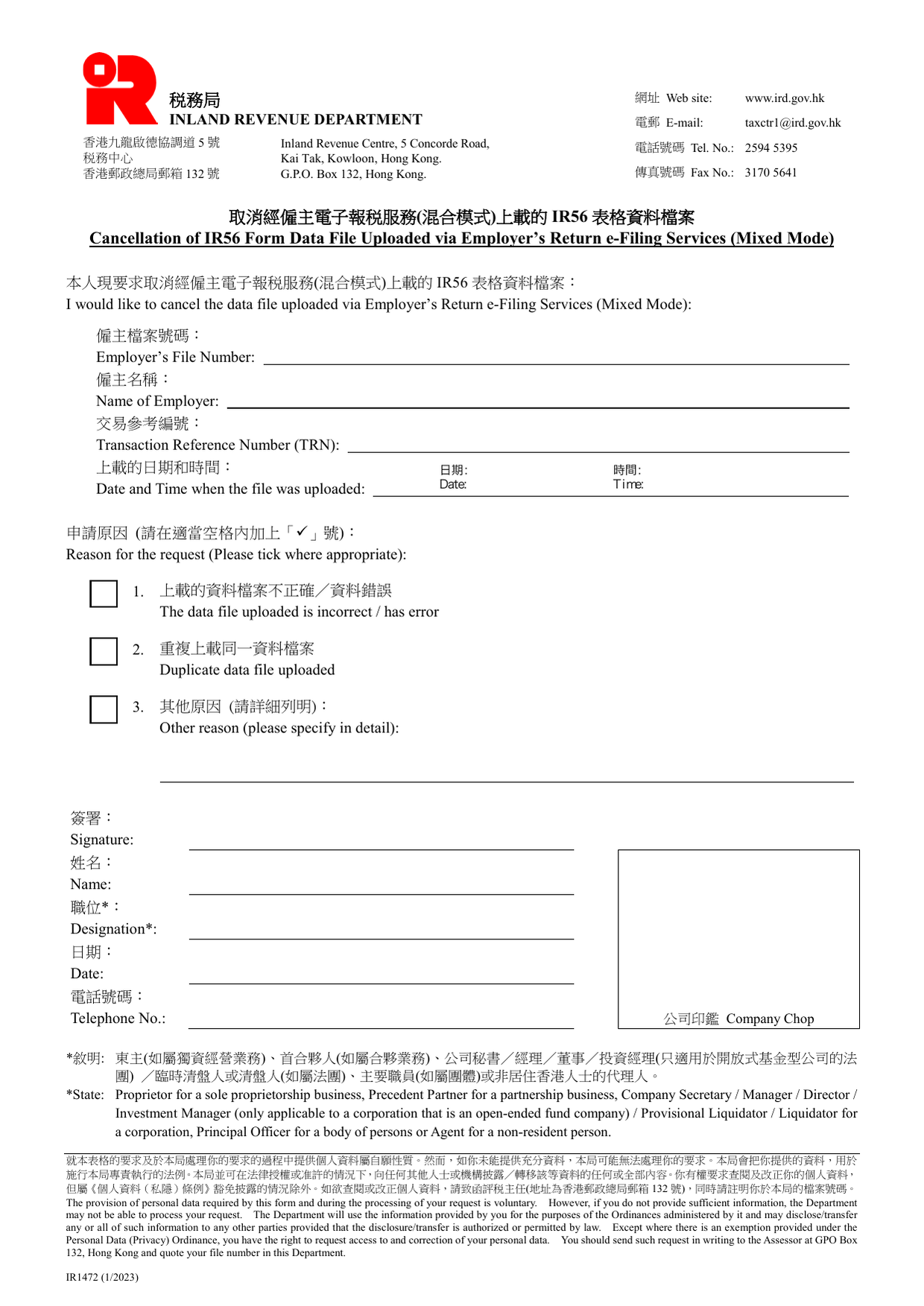
Cancellation of IR56 Form Data File Uploaded via Employer’s Return e-Filing Services (Mixed Mode)
Employer’s File Number
Enter the employer’s file number issued by the Inland Revenue Department. This is the same number used for the employer’s return (IR56B etc.). If you do not know it, check the IR56 form or previous correspondence from the Department.
Name of Employer
Enter the full legal name of the employer as registered with the Inland Revenue Department. This must match the name on the original data file upload.
Transaction Reference Number (TRN)
Enter the Transaction Reference Number assigned when the data file was uploaded via the Employer’s Return e-Filing Services (Mixed Mode). The TRN is generated by the e-filing system and appears on the upload confirmation screen or receipt. Without this number, the Department may not be able to locate the file to cancel.
Date and Time when the file was uploaded: Date: Time:
Enter the exact date and time the data file was uploaded. This must match the upload timestamp recorded in the e-filing system. Do not guess; check the upload confirmation or system log. A mismatch may delay or prevent cancellation.
Reason for the request (Please tick where appropriate)
Select one of the three options by ticking the box. Do not tick more than one.
- 1. The data file uploaded is incorrect / has error - Use this if the file contained wrong employee details, incorrect income figures, or formatting errors.
- 2. Duplicate data file uploaded - Use this if the same file was uploaded more than once accidentally.
- 3. Other reason (please specify in detail) - Use this only if the reason does not fit option 1 or 2. You must write the reason on the line provided. Vague descriptions such as “mistake” without detail may be rejected.
Signature
The form must be signed by the person listed under Designation. A digital or handwritten signature is acceptable. If signing on behalf of a company, ensure the signatory is authorised.
Name
Print the full name of the person signing.
Designation
State the official position of the signatory, choosing from the prescribed list in the footnote: - Proprietor (sole proprietorship) - Precedent Partner (partnership) - Company Secretary / Manager / Director / Investment Manager (only for an open-ended fund company) / Provisional Liquidator / Liquidator (corporation) - Principal Officer (body of persons) - Agent (non-resident person)
Do not invent a title; use exactly one from the list. If the signatory holds more than one qualifying role, pick the most relevant.
Date
Enter the date the form is signed.
Telephone No.
Enter a daytime contact number. The Department may call if clarification is needed.
Company Chop
Affix the company chop (official stamp) if available. This is not mandatory but is strongly recommended to verify the signatory’s authority.
Download the current form - always file the version on the issuing authority's site, not a copy.
Sources
More on the forms library.