Setting Up an E-Stamp Account with Form IRSD109
Complete Form IRSD109 to open a Hong Kong E-Stamp Account for convenient online stamping of documents. Learn the requirements and process.
IRSD109 at a glance
- Official title
- E-Stamp Account Form
- Issued by
- Inland Revenue Department
We link the issuing authority's own index rather than hosting a copy, because the form is revised there and an out-of-date copy is worse than none.
Form IRSD109 E-Stamp Account Form for Hong Kong Stamp Duty
The Form IRSD109 E-Stamp Account Form registers an e-Stamp Account with the Inland Revenue Department (IRD) Stamp Office. This account manages the entire stamping process online. The IRD's e-stamping system lets you submit applications, pay duty, and receive stamp certificates. Without an account, paper applications must be filed in person or by post, a slower process.
An e-Stamp Account streamlines compliance. The form requires specific details to set up the account, and a clear process activates it for online use.
Benefits of an e-Stamp Account
An e-Stamp Account offers clear advantages over paper-based stamping. You can submit stamp duty applications for property transactions, share transfers, and other instruments anytime via the IRD portal. The system automatically calculates the duty payable. Pay by credit card, PPS, or online banking. Once payment is confirmed, the stamp certificate is issued immediately for download or printing. This eliminates visits to the Stamp Office, reduces processing time from days to minutes, and creates a digital record of all transactions.
The account also tracks application status, shows past transactions, and generates reports. For businesses managing regular stamping, an e-Stamp Account is essential for efficient compliance.
IRSD109 E-Stamp Account Setup
Setting up an e-Stamp Account starts with Form IRSD109. Download it from the IRD website or collect it from the Stamp Office. Provide accurate information for the account holder, whether an individual, a company, or another entity.
The form requires these details:
- Account holder name: The full legal name of the individual or entity.
- Contact information: Correspondence address, telephone number, and email address. The email address is used for notifications and password resets.
- Business registration number (BRN): Businesses must provide the BRN from the .
- Hong Kong identity card number or passport number: Individual applicants must supply their identity document number.
- Authorised user details: Nominate additional users here. Each must provide their name, identity document number, and email address.
The applicant or an authorised representative must sign the form. For companies, the signatory must be a director, company secretary, or another person authorised by the board.
Hong Kong E-Stamp Account Application Process
Submit the completed Form IRSD109 to the Stamp Office. Submission is by post, in person, or by email. The IRD website specifies the postal address. In-person delivery is during business hours. For email submission, check the IRD website for current acceptance policies.
The Stamp Office processes the application. If approved, it issues an account activation notice by email or post. This notice contains the account login ID and a temporary password. You must log in to the e-stamping portal and change the password on first use. Processing takes a few working days, but allow extra time during peak periods. The IRD does not charge a fee to open an e-Stamp Account.
Open E-Stamp Account IRSD109
To open an e-Stamp Account with Form IRSD109, ensure all information is complete and accurate. Incomplete forms are returned, delaying setup.
Supporting documents may be required. These include:
- A copy of the applicant's Hong Kong identity card or passport.
- A copy of the business registration certificate (if applicable).
- A copy of the company's certificate of incorporation (for company applicants).
- Proof of authority for the signatory, such as a board resolution.
The Stamp Office may request more documents if the provided information is insufficient. Once the account is open, you can use the e-stamping facilities immediately.
IRD E-Stamp Account Form
Form IRSD109 is the sole application for an e-Stamp Account. The IRD does not accept applications by telephone or through third-party agents. The applicant must complete the form personally or through an authorised representative.
The form has three sections:
- Section A: Account holder details, including name, address, and contact information.
- Section B: Authorised user details, listing each person who will operate the account.
- Section C: Declaration and signature, confirming the information is true and correct.
Print and sign the form in ink. Electronic signatures are not accepted for the initial application. After the account is opened, you can manage authorised users online through the portal.
Using the E-Stamp Account
After activation, log in to the e-stamping portal with the provided ID and password. The portal allows you to submit stamp duty applications for property transactions, share transfers, and other instruments. You can upload supporting documents like sale and purchase agreements. The system calculates stamp duty payable based on transaction details. Pay by credit card, PPS, or online banking. Download stamp certificates immediately after payment. You can also view transaction history and account statements.
The e-stamping system is available 24/7, except during scheduled maintenance. Keep your login credentials secure. Notify the Stamp Office immediately if you suspect unauthorised access.
Maintaining the Account
Account holders must keep contact information current. Notify the Stamp Office of changes to the account holder's name, address, or authorised users using Form IRSD106. The Stamp Office may also require annual confirmation of account details.
If an account is unused for an extended period, the Stamp Office may suspend or close it. Contact the Stamp Office to reactivate a suspended account.
Troubleshooting
Common setup issues include form rejection due to incomplete information. Double-check all fields before submission. If you do not receive an activation notice, check spam folders and contact the Stamp Office if it does not arrive within five working days. For login problems, use the portal's "Forgot Password" function or contact the Stamp Office.
The IRD provides a helpdesk for e-stamping queries. Contact details are on the IRD website.
Summary of Key Steps
| Step | Action |
|---|---|
| 1 | Download Form IRSD109 from the IRD website |
| 2 | Complete the form with accurate account holder and authorised user details |
| 3 | Sign the form and attach supporting documents |
| 4 | Submit the form to the Stamp Office by post, in person, or by email |
| 5 | Wait for the activation notice containing login ID and temporary password |
| 6 | Log in to the e-stamping portal and change the password |
| 7 | Begin using the account for online stamping |
For further information, refer to the Inland Revenue Department's e-stamping guide on its website or contact the Stamp Office directly.
How to fill out Form IRSD109
Page one of the official form. Every field named below appears on it in the same order.
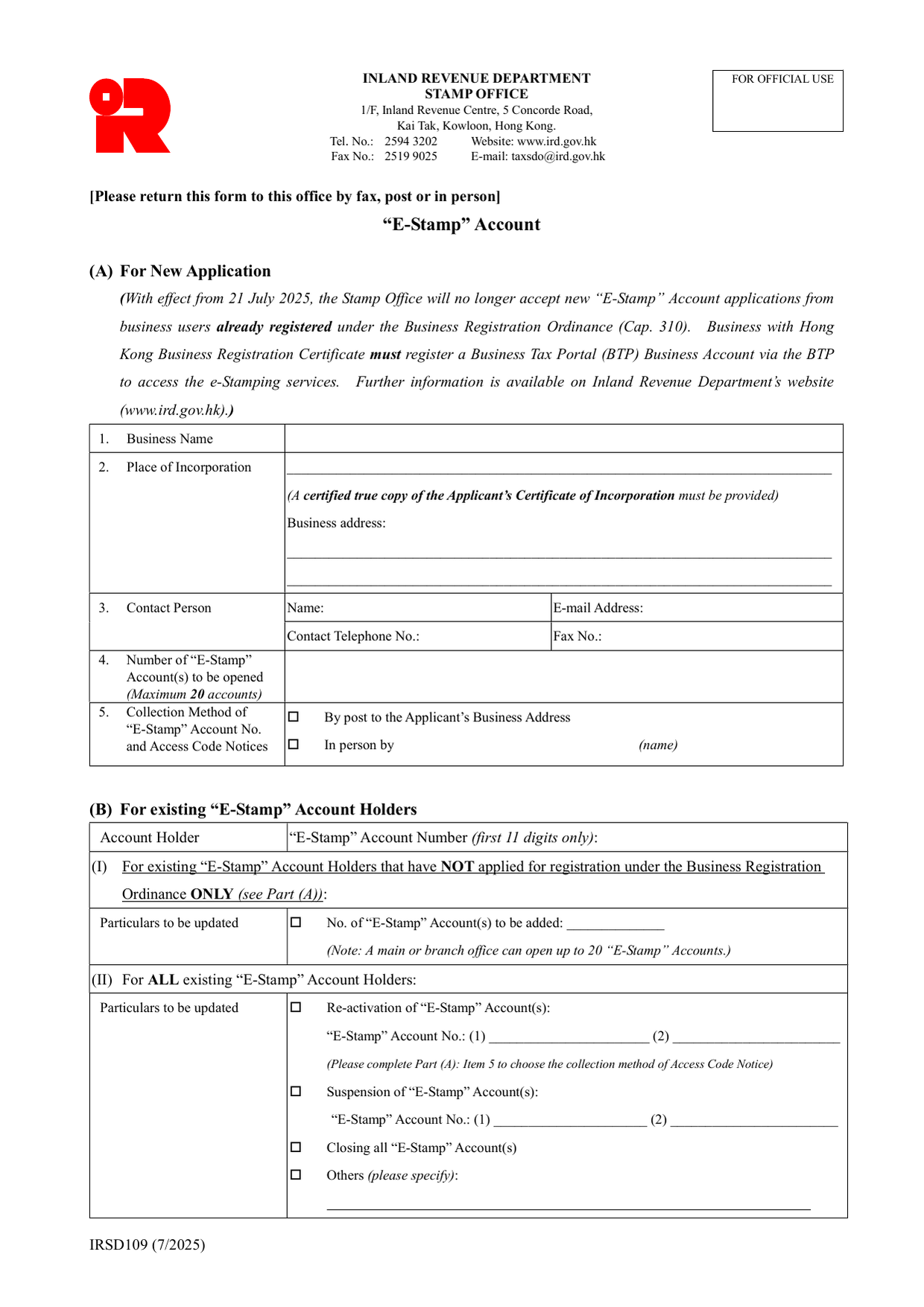
(A) For New Application
1. Business Name Enter the full legal name of the business applying for the account.
2. Place of Incorporation State the jurisdiction where the business was incorporated. You must attach a certified true copy of the Certificate of Incorporation.
Business address Provide the full business address. This is where notices will be sent if you select the postal option in item 5.
3. Contact Person Give the name, email address, contact telephone number and fax number of the person the Stamp Office should contact about this application.
4. Number of "E-Stamp" Account(s) to be opened Enter the number of accounts you want. The maximum is 20 accounts.
5. Collection Method of "E-Stamp" Account No. and Access Code Notices Choose one: - By post to the Applicant's Business Address - the notice will be mailed to the address given in item 2. - In person by (name) - write the name of the person who will collect the notice from the Stamp Office.
Important: From 21 July 2025, the Stamp Office will no longer accept new "E-Stamp" Account applications from businesses already registered under the Business Registration Ordinance (Cap. 310). If you hold a Hong Kong Business Registration Certificate, you must register a Business Tax Portal (BTP) Business Account via the BTP to access e-Stamping services.
(B) For existing "E-Stamp" Account Holders
Account Holder - write the name of the account holder. "E-Stamp" Account Number - enter the first 11 digits of the existing account number.
(I) For existing "E-Stamp" Account Holders that have NOT applied for registration under the Business Registration Ordinance ONLY Tick the box if you are updating particulars. Enter the number of additional accounts you want to open. A main or branch office can open up to 20 "E-Stamp" Accounts in total.
(II) For ALL existing "E-Stamp" Account Holders Tick the relevant box and provide the required details: - Re-activation of "E-Stamp" Account(s) - enter the account number(s). You must also complete Part (A), item 5 to choose how you will receive the Access Code Notice. - Suspension of "E-Stamp" Account(s) - enter the account number(s). - Closing all "E-Stamp" Account(s) - no account numbers needed. - Others - specify the change.
(C) Declaration
Write your full name. State your capacity: director, company secretary, or other (specify). Sign and apply the business chop. Enter the applicant's name, your capacity (tick director, company secretary, or other), and the date.
The declaration confirms the information is true and correct, and that the applicant has NOT applied for registration under the Business Registration Ordinance as of the date of application. This note applies only to applicants who completed Part A or Part B(I).
Delete whichever is inapplicable in the declaration text. Tick the appropriate box for your capacity.
Download the current form - always file the version on the issuing authority's site, not a copy.
Sources
More on the forms library.